Today's craft
Linking — anchors, navigation & your first multi‑page site.
For three classes, everything you built lived on one lonely page. Today you meet the tag that turned isolated documents into a web — and before this hour ends, you will have written, saved and clicked through your own three-page website. Every skill Lab 1 needs is on today's table.
Walk out of this room able to…
Point 11 builds the full Poshtik Campus menu, and its photos come from today's asset pack — the branded dish cards, packaged once as a single ZIP. Unzip it and copy the images/ contents into your own menu-full/assets/ folder when we get there. This link lives on this page only; later points just name the files.
Part 2 · The big idea
One small tag made it a web.
Documents existed long before 1991. Libraries were full of them. What no document could do was carry you to another one by touch. A hyperlink is exactly that: a piece of text — or an image — that holds the address of another document, and hands your browser that address the moment you click.
Every page is an island. To read a related document you must already know its full address, type it perfectly, and hope you made no mistake. Ten documents means ten addresses memorised. Knowledge exists — but it doesn't connect.
Any word can be a doorway. The address travels inside the page itself — you just click. Follow a link, then another, then another: that click-to-click journey is why the whole system is called a web, and the program you follow it with is called a browser.
HTML = HyperText Markup Language. "Hypertext" means text that goes beyond flat text — text with live connections inside it. Headings, paragraphs and images were the warm-up; the hyperlink is the feature the whole language is named after.
GO DEEPER · ON YOUR OWN
The very first website — Tim Berners-Lee's info.cern.ch, 1991, which you met in Class 1 — was little more than a short page of hyperlinks. No colours, no images, no layout. The links alone were revolutionary: for the first time, "see document X" was something you could do, not just read.
Count your own clicks after class: from any news homepage to a story, to a related story, to a source. Each hop is one <a> tag doing exactly what you learn to write today.
Part 3 · The tag itself
Anatomy of <a> — four parts, one job.
The tag is called a for anchor. It wraps the text a visitor clicks, and its href attribute — hypertext reference — carries the destination address. Learn to read these four parts and no link on any website will ever be a mystery again.
menu.html that doesn't exist yet — so you can see exactly what the browser does with a link, and with a missing destination.- Save as
anchor-demo.htmlinsideclass-04· title text: My first hyperlink - Full skeleton, an
<h1>, one paragraph of pitch text - One anchor:
<a href="menu.html">See today's menu</a>— a bare relative filename, no scheme
menu.html — which 404s until Part 5 makes it real.<!DOCTYPE html><html lang="en"> <head> <meta charset="UTF-8"> <title>My first hyperlink</title> </head> <body> <h1>Poshtik Campus</h1> <p>Hungry between classes? We deliver during break hours.</p> <a href="menu.html">See today's menu</a> </body></html>Hungry between classes? We deliver during break hours.
See today's menu
It may have been moved, edited or deleted.
ERR_FILE_NOT_FOUND
← Back to anchor-demo.html
C:\Users\student\Desktop\fswd-practice\class-04\anchor-demo.htmlfswd-practice\ is the throwaway sandbox, never a repo. Zero commits in this class; version control waits for poshtik-campus\ work.GO DEEPER · WHY "ANCHOR"?
The name comes from print and early hypertext research: a link needs a fixed point in the text where it is anchored — the words you attach the destination to. The destination side got the matching name you'll meet in Part 11: an anchor point, marked today with an id.
One more default you already saw in the preview: after you visit a link, most browsers repaint it purple instead of blue — a 30-year-old convention that quietly answers "have I already read this?" everywhere on the web.
Part 4 · Addresses
Relative vs absolute — the #1 multi-page bug.
Every href is an address, and addresses come in two kinds. Mix them up and you get the single most common beginner bug in multi-page sites: a site that works perfectly on your laptop and breaks on everyone else's. Here is the folder we're about to build — keep your eye on it.
"From where this file lives, go to…" — href="menu.html" means the file sitting beside me; href="assets/poshtik-logo.jpg" means step into my assets folder, take the logo. No drive letters, no domain. Move the whole folder anywhere — pen drive, another laptop, a real server — and every relative link still works, because the files kept their positions relative to each other.
The complete address from the top: https://www.vce.ac.in/. It works from anywhere on Earth — and that is exactly its job: linking to other people's sites. Between your own pages it's the wrong tool: the address pins your site to one exact location, and the moment the site moves, every such link snaps.
A student writes href="C:\Users\priya\Desktop\fswd-practice\class-04\mini-site\menu.html". On Priya's laptop it works — the browser finds the file at that disk address. Submitted to the instructor, hosted on a server, opened on any other machine: broken link, because no other computer has Priya's folders. The rule that prevents it forever: your own pages take relative paths · other sites take absolute URLs.
GO DEEPER · GOING UP A LEVEL
Going down into a folder is a name and a slash: assets/poshtik-logo.jpg. Going up one level is two dots: from a file inside assets/, ../index.html means "step out of this folder, then find index.html". You won't need .. today — the mini-site keeps all three pages side by side on purpose — but you'll meet it the moment a project grows its first sub-page folder.
Quick self-check, standing in index.html: the logo is assets/poshtik-logo.jpg ✓ · the menu is menu.html ✓ · the college website is absolute, https://www.vce.ac.in/ ✓
Part 5 · Build it
Three files. One site. Your first.
Everything so far was one page pointing at nothing. Now we make the destinations real: a home page, a menu page and an about page, all inside mini-site/ — the folder tree you just studied. Each file is complete on its own; the links are what turn three files into one site.
File 1 of 3 — index.html, the front door
- Save as
index.htmlinsideclass-04\mini-site\· title text: Poshtik Campus · Home <h1>+ one tagline paragraph- Two links, each in its own
<p>:href="menu.html"andhref="about.html"— bare relative filenames only
<!DOCTYPE html><html lang="en"> <head> <meta charset="UTF-8"> <title>Poshtik Campus · Home</title> </head> <body> <h1>Poshtik Campus</h1> <p>Healthy food, healthy body, healthy mind — delivered during break hours.</p> <p><a href="menu.html">See the menu</a></p> <p><a href="about.html">About us</a></p> </body></html>Healthy food, healthy body, healthy mind — delivered during break hours.
See the menu
About us
It may have been moved, edited or deleted.
ERR_FILE_NOT_FOUND
← Back to index.html
It may have been moved, edited or deleted.
ERR_FILE_NOT_FOUND
← Back to index.html
C:\Users\student\Desktop\fswd-practice\class-04\mini-site\index.html — one of THREE linked files landing in this same folder this sessionfswd-practice\ sandbox.File 2 of 3 — menu.html, where the links lead
- Save as
menu.htmlin the samemini-site\folder as index.html — exactly this name, lowercase - Title text: Poshtik Campus · Menu ·
<h1>Today's Menu - A
<ul>of three dishes - A return link:
<a href="index.html">Back to home</a>
<!DOCTYPE html><html lang="en"> <head> <meta charset="UTF-8"> <title>Poshtik Campus · Menu</title> </head> <body> <h1>Today's Menu</h1> <ul> <li>Jonna Rotte Wrap</li> <li>Ragi Idli Bowl</li> <li>Millet Protein Shake</li> </ul> <p><a href="index.html">Back to home</a></p> </body></html>- Jonna Rotte Wrap
- Ragi Idli Bowl
- Millet Protein Shake
Back to home
Healthy food, healthy body, healthy mind — delivered during break hours.
See the menu
About us
It may have been moved, edited or deleted.
ERR_FILE_NOT_FOUND
← Back to index.html
C:\Users\student\Desktop\fswd-practice\class-04\mini-site\ — same folder as index.html, or the relative links breakmenu.html — exactly this, lowercase. The name must match every href="menu.html" letter for letter.index.html — sandbox file, no repo, no commit.File 3 of 3 — about.html, and the loop closes
- Save as
about.htmlin the samemini-site\folder · title text: Poshtik Campus · About <h1>+ one paragraph about the project- A return link to
index.html
index.html and click your way around: home ⇄ menu, home ⇄ about — the address bar changes file names as you move. That is a multi-page site working.<!DOCTYPE html><html lang="en"> <head> <meta charset="UTF-8"> <title>Poshtik Campus · About</title> </head> <body> <h1>About Poshtik Campus</h1> <p>Made fresh in the campus canteen, delivered to classrooms and hostels during break hours.</p> <p><a href="index.html">Back to home</a></p> </body></html>Made fresh in the campus canteen, delivered to classrooms and hostels during break hours.
Back to home
Healthy food, healthy body, healthy mind — delivered during break hours.
See the menu
About us
- Jonna Rotte Wrap
- Ragi Idli Bowl
- Millet Protein Shake
Back to home
C:\Users\student\Desktop\fswd-practice\class-04\mini-site\about.htmlindex.html. Click Menu, then Back, then About, then Back. Watch the address bar change file names as you move — that is a multi-page site working.fswd-practice\ ever gets committed. When this exact pattern grows into poshtik-campus\ in Lab 1, that version is repo material.Three classes ago you had never written a tag. You now own a working, navigable, multi-page website — built with nothing but a text editor and three small files. Lab 1's poshtik-campus/ site is this exact pattern, grown larger.
Now click around it — right here.
This preview is LIVE: the three pages you just typed, wired together exactly as the browser wires them. Click See the menu — the address bar changes, the tab changes, the menu page loads. Click Back to home and you return. This is the complete output of your three files, working as one site:
Healthy food, healthy body, healthy mind — delivered during break hours.
See the menu
About us
- Jonna Rotte Wrap
- Ragi Idli Bowl
- Millet Protein Shake
Back to home
Made fresh in the campus canteen, delivered to classrooms and hostels during break hours.
Back to home
GO DEEPER · SHARED NAV, AND A PAIN YOU SHOULD FEEL
Real sites repeat the same navigation links on every page, not just the home page. Try it: paste the two links from index.html into the top of menu.html and about.html too. Now change one link's text — you must edit it in three places. Annoying? Good. Remember that annoyance: much later in this course, components and templating exist precisely to remove it. You can't appreciate the fix before you've felt the problem.
Part 6 · Leaving the site
Links that leave — other sites, and email.
Your mini-site's links all stay in the family. Two more link kinds complete the toolkit: an external link that opens someone else's website in a new tab, and a mailto: link that opens the visitor's email app with the address pre-filled.
mailto: link that opens the visitor's email app pre-addressed.- Save as
outside-links.htmlat theclass-04root · title text: Links that leave the site - External link to
https://www.vce.ac.in/with BOTHtarget="_blank"andrel="noopener"— the pair always travels together - Email link:
href="mailto:orders@poshtikcampus.in"
<!DOCTYPE html><html lang="en"> <head> <meta charset="UTF-8"> <title>Links that leave the site</title> </head> <body> <h1>Find us beyond this site</h1> <p><a href="https://www.vce.ac.in/" target="_blank" rel="noopener">Vasavi College website</a></p> <p><a href="mailto:orders@poshtikcampus.in">Email your order</a></p> </body></html>target="_blank" working); the second genuinely opens your email app, addressed and ready. Try both. Notice afterwards the college link turns purple — the browser's own visited-link default.C:\Users\student\Desktop\fswd-practice\class-04\ — a single-file demo, so it stays at the class rootoutside-links.htmlWithout it, clicking the college link would replace your page — the visitor leaves your site. With it, the college opens in a new tab and your site stays put. Convention: use it for links that leave your site; never for your own pages, where tab-spawning just irritates.
The href doesn't have to be a page at all. mailto:orders@poshtikcampus.in tells the browser: open the email app, addressed and ready. No form, no server — the humble contact link that still powers half the "Contact us" footers on the web.
rel="noopener" rides along with target="_blank".
A page opened in a new tab can — through an old browser loophole — reach back and redirect the tab that opened it. rel="noopener" slams that door. You don't need the full security story yet; you need the habit: the two attributes travel as a pair. Type one, type both.
GO DEEPER · THE SCHEME PREFIX
Look at what comes before the colon in each href you've written today: https:, mailto:. That prefix is called the scheme — it tells the browser what kind of action the address needs. https: = fetch a page securely; mailto: = compose an email; your bare menu.html has no scheme at all, which is exactly what marks it as relative. Phone links exist too: tel:+914023146003 dials on a phone.
Complete the Campus Nav.
A navigation list for the mini-site, three quarters written. Three href values are missing — the rest of the file is untouchable. Write the three missing addresses.
Setup: this file will be saved into class-04\activities\ — which means it does not sit beside the mini-site's pages. For this exercise, pretend it does: fill each gap as if this file lived inside mini-site\, right next to its three pages.
Rules:
- Every answer is a relative path.
- No
C:\, nohttps://, no folder names needed. - Spelling and case must match the real filenames exactly.
<!DOCTYPE html><html lang="en"> <head> <meta charset="UTF-8"> <title>Campus Nav — fill me in</title> </head> <body> <ul> <li><a href="__________ ①">Home</a></li> <li><a href="__________ ②">Today's Menu</a></li> <li><a href="__________ ③">About us</a></li> </ul> </body></html>- Home
- Today's Menu
- About us
It may have been moved, edited or deleted.
ERR_FILE_NOT_FOUND
← Back to nav-practice.html
C:\Users\student\Desktop\fswd-practice\class-04\activities\ — activity files get their own subfolder from this class onnav-practice.htmlCommit to your three answers first — on paper or in the box above.
Three bare filenames — nothing more.
<ul> <li><a href="index.html">Home</a></li> <li><a href="menu.html">Today's Menu</a></li> <li><a href="about.html">About us</a></li> </ul>- Home opens index.html ✓
- Today's Menu opens menu.html ✓
- About us opens about.html ✓
Healthy food, healthy body, healthy mind — delivered during break hours.
See the menu
About us
index.html landed exactly where it promised. ← Back to nav-practice.html- Jonna Rotte Wrap
- Ragi Idli Bowl
- Millet Protein Shake
Back to home
menu.html, exact spelling, exact case. ← Back to nav-practice.htmlMade fresh in the campus canteen, delivered to classrooms and hostels during break hours.
Back to home
C:\Users\...\index.html — works only on your machine (Part 4's classic bug). https://poshtikcampus.in/menu.html — the site isn't hosted anywhere yet; and even when it is, internal links shouldn't pin themselves to one domain. mini-site/menu.html — you were told to stand inside mini-site; from there the extra folder name looks for mini-site\mini-site\menu.html, which doesn't exist. Bare filename: correct from all three angles.
- All three bare filenames, exact spelling — full marks, you've beaten the #1 multi-page bug.
- Right idea but wrote
Menu.htmlorAbout.HTML— half marks; a hosted Linux server treats case as different files, so the habit matters now. - Used a full
C:\orhttps://path — re-read Part 4's red card, then redo all three from scratch. This exact confusion is what the activity exists to catch.
The build-order shuffle.
Four things happen every time anyone — student or professional — builds a multi-page site. Below they've been shuffled. Write the correct order, and for each step, one line on why it can't come earlier. This exact sequence is the workflow you'll run in Lab 1.
Draft the set of links every page will carry — Home · Menu · About — as one <ul> of anchors.
Decide, on paper, what pages the site needs and what each one is called. No editor open yet.
Point every href at its real file, then open the site and click down every path, both directions.
Make the folder, create one .html file per planned page, each with a full valid skeleton.
Lock in your order first — the "why" lines are where the marks live.
Plan. Files. Nav. Test.
Everything downstream copies this decision: filenames become hrefs become the nav. Change your mind after step 3 and you're editing every file. Paper is the cheapest place to be wrong.
Can't come before PLAN: you'd be inventing filenames with no plan. Must come before NAV: a nav written first points at files that don't exist yet — every link a guess.
Now every href names a file that is really on disk — no guessing, no typo-by-memory. This is also the step you'll feel in Lab 1: same nav, pasted into every page of poshtik-campus/.
Testing is last because it tests everything before it: plan, filenames, nav, paths. Click every link on every page, both directions. A link you never clicked is a link you don't know works.
In Lab 1 you'll run exactly Plan–Files–Nav–Test on a fresh poshtik-campus/ folder: plan its pages, create the files, write one shared nav, link and click-test. Walk in with this order in your head and the lab becomes execution, not discovery.
- Order exactly Plan, Files, Nav, Test with four sensible "why" lines — full marks.
- Swapped Nav and Files? The classic instinct — "write the nav while it's fresh" — but a nav pointing at ghost files can't be click-tested. Re-read step 2's why.
- Put Test anywhere but last? Ask yourself what a click-test can verify when nothing is linked yet.
Part 11 · Inside one page
Jump links — id + #fragment, at real scale.
Links can also jump within a page. Give any element an id — a unique name — and an anchor whose href is #that-name scrolls straight to it. On a three-line page that's a party trick. On the full ten-dish Poshtik Campus menu, it's the difference between finding a dish in one click and scrolling past nine you didn't want.
<h2 id="ragi-idli-bowl">Ragi Idli Bowl</h2> — the id is invisible to visitors. Rules: unique on the page, no spaces, and by our house style: lowercase kebab-case, same as filenames.
<a href="#ragi-idli-bowl">Ragi Idli Bowl</a> — the # marks a fragment: "this page, that section". Clicking scrolls; no new file loads. The two names must match exactly.
<!DOCTYPE html><html lang="en"> <head> <meta charset="UTF-8"> <title>Poshtik Campus · Full Menu</title> </head> <body> <h1>Poshtik Campus · Full Menu</h1> <!-- jump list: one fragment link per dish --> <ul> <li><a href="#jonna-rotte-wrap">Jonna Rotte Wrap</a></li> <li><a href="#sajja-roti-wrap">Sajja Roti Wrap</a></li> <!-- …same pattern for the other 8 dishes… --> <li><a href="#millet-protein-shake">Millet Protein Shake</a></li> </ul> <!-- dish sections: each id matches one link above --> <h2 id="jonna-rotte-wrap">Jonna Rotte Wrap</h2> <img src="assets/jonna-rotte-wrap.png" alt="Jonna Rotte Wrap on a banana leaf"> <p>High in fibre · rich in iron · gluten free.</p> <p><a href="#top">Back to top</a></p> <h2 id="sajja-roti-wrap">Sajja Roti Wrap</h2> <!-- …sections for all 10 dishes continue the same way… --> </body></html>- Jonna Rotte Wrap
- Sajja Roti Wrap
- Ragi Sangati Bowl · Ragi Idli Bowl · Pesarattu with Sprouts · Ulava Charu Protein Bowl · Gongura Sprouts Salad · Sprouts Moong Chilla · Paneer Protein Bowl
- Millet Protein Shake
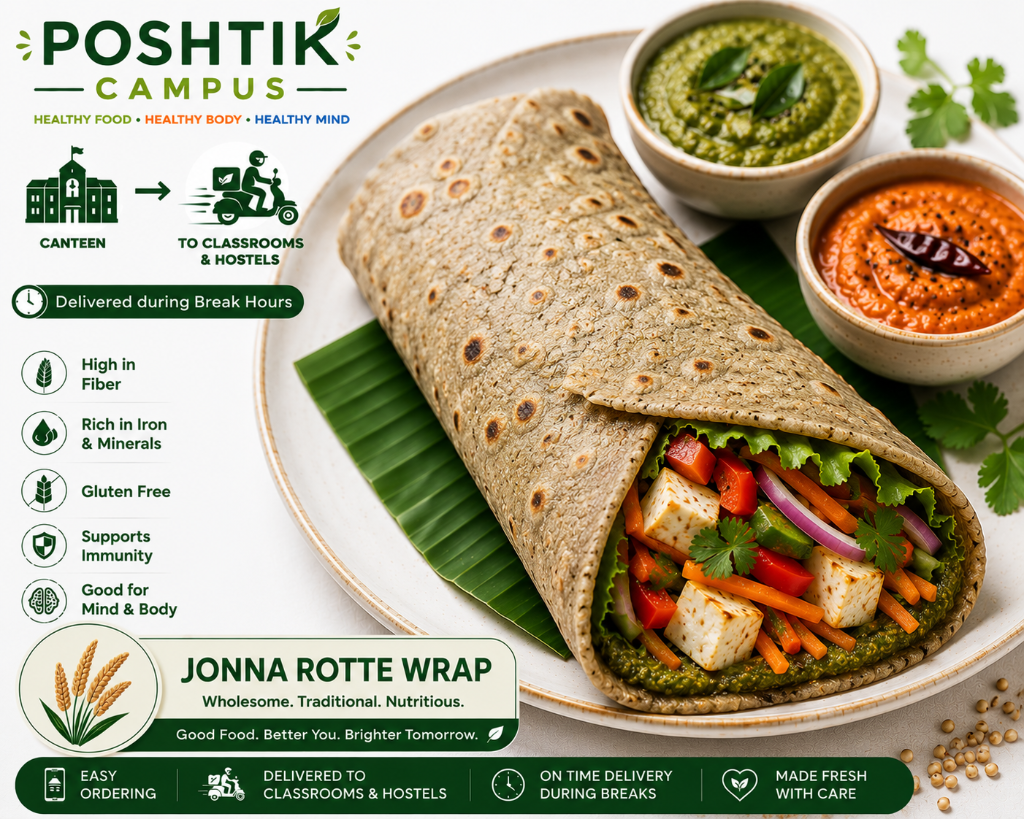
High in fibre · rich in iron · gluten free.
Back to top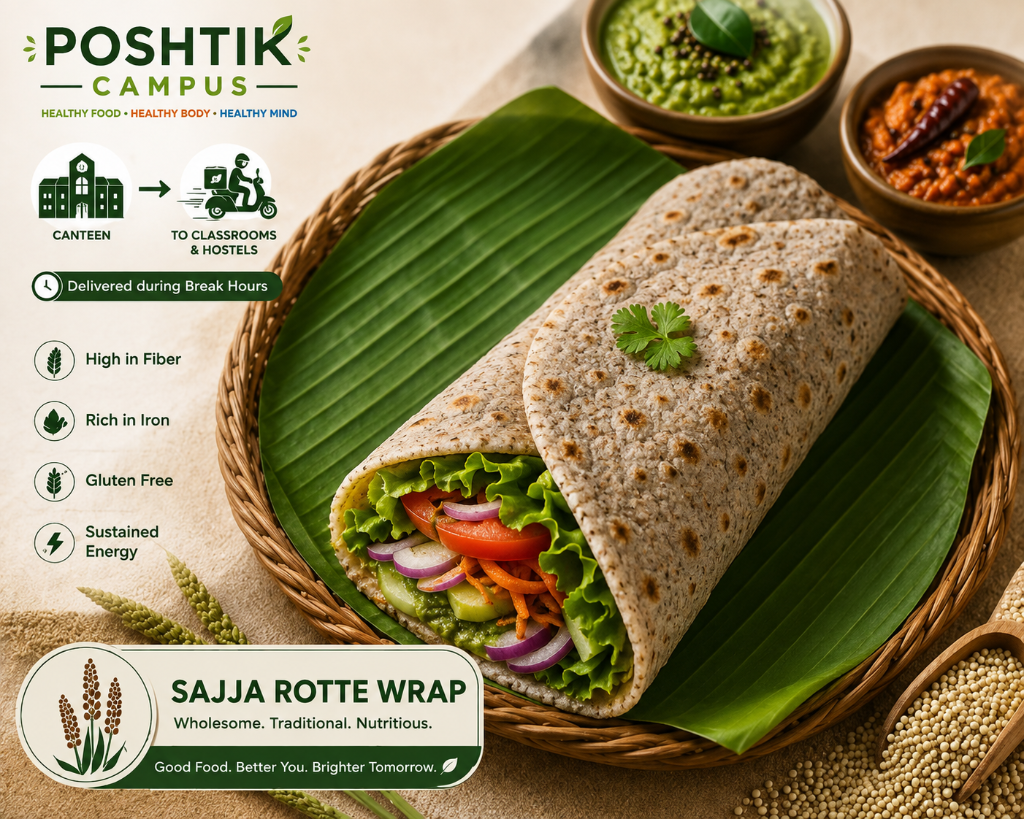
Wholesome · traditional · nutritious.
Back to top
High in calcium & fibre · rich in iron · gluten free.
Back to top
Wholesome · traditional · nutritious.
Back to top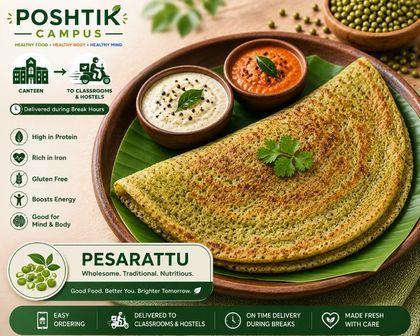
High in protein · boosts energy.
Back to top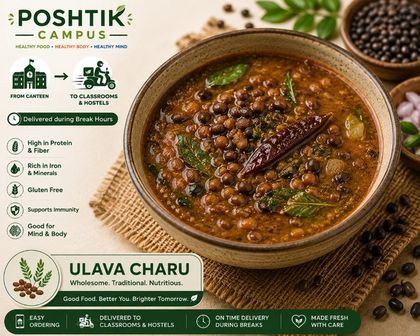
High in protein & fibre · rich in iron.
Back to top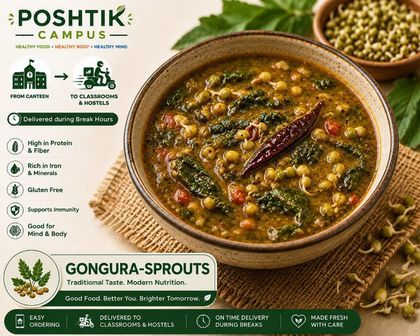
Traditional taste · modern nutrition.
Back to top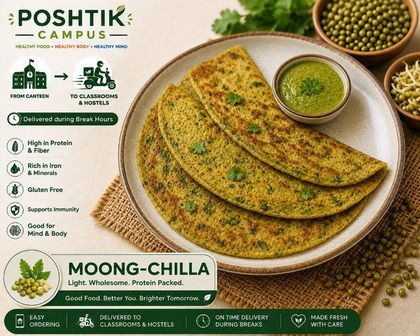
Light · wholesome · protein packed.
Back to top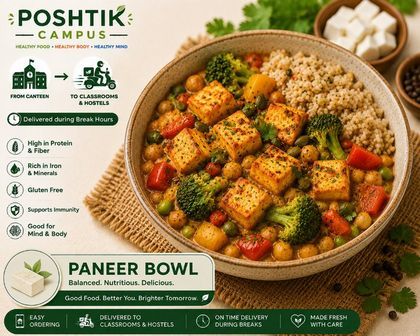
Balanced · nutritious · delicious.
Back to top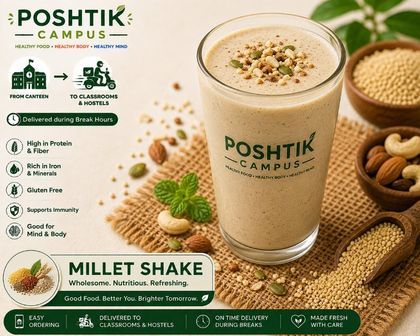
Wholesome · nutritious · refreshing.
Back to topC:\Users\student\Desktop\fswd-practice\class-04\menu-full\ — its own folder: a realistic-scale demo with its own asset setmenu-full.html — write all 10 dish sections yourself; the two comment lines in the panel mark where the pattern simply repeatsmenu-full\assets\ — every src="assets/…" then resolves. All ten dish cards are in the pack — the Ragi Sangati Bowl photo included, so no placeholder tags remain.poshtik-campus\, it gets committed with a message worth reading.You now know every href kind: relative (menu.html), absolute (https://…), email (mailto:) and fragment (#ragi-idli-bowl). They compose: menu-full.html#paneer-protein-bowl from another page jumps straight to that dish — file first, fragment after.
GO DEEPER · YOU USE FRAGMENTS DAILY
Wikipedia's "Contents" box is a fragment-link list. A shared YouTube timestamp, a docs page's "§ heading" link, this course's own section rail on the left of this page — all fragments. Watch your address bar after any in-page jump: everything from # onward is the fragment, and the browser never re-downloads the page to honour it.
One convention worth copying: href="#top" works because browsers treat #top as "scroll to the very top" even without an element named top — a freebie the "Back to top" links above rely on.
DevTools challenge: find the <a> behind "See the menu".
Every browser ships a professional X-ray machine for web pages, free. Today it answers one sharp question about your own mini-site: exactly which anchor tag fires when you click "See the menu"?
Step 1. Open your own mini-site\index.html in Chrome.
Step 2. Right-click directly on the "See the menu" link text — not empty space beside it — and choose Inspect from the menu that appears.
Step 3. A panel opens: the Elements tab, showing your page as the browser understands it. One line is already highlighted — the exact element you right-clicked.
Your three answers:
- Copy the full highlighted
<a>line, character for character. - Which attribute holds the destination, and what is its value?
- Hover that highlighted line — what lights up in the page above, and what does that tell you about the panel?
Actually do the right-click first — the panel is the lesson.
What the Elements panel showed you.
① <a href="menu.html">See the menu</a> — exactly what you typed in Part 5, proof the browser kept your markup as-is. ② The href attribute holds the destination; its value is menu.html, a relative path. ③ Hovering the line makes the browser highlight the real link in the page above — the panel and the page are two views of the same live structure, not a copy. Change one, the other follows.
- Got all three, including ③'s "two views of one structure" insight — full marks. Inspect is now permanently on your toolbelt.
- Found the tag but couldn't name the attribute — revisit Part 3's anatomy; the four parts of
<a>should be automatic by Lab 1. - Panel didn't open? F12 or Ctrl+Shift+I opens it directly — then click the arrow-in-square icon at its top-left and click the link in the page.
GO DEEPER · READ ANY SITE'S LINKS
Inspect works on every website, not just yours. Open any shopping site, inspect its nav bar, and read the hrefs: you'll recognise relative paths, absolute URLs and fragments — the exact vocabulary you learned today, powering pages built by thousand-person teams. Nothing on the web is hidden from Inspect: it is how working developers learn from other people's pages every day.
Does every link make sense on its own?
Many blind and low-vision users browse with a screen reader — software that reads pages aloud. One of its most-used features reads out only the links, as a bare list, skipping everything around them. Your link text has to survive with all its surrounding context stripped away.
The audit: below are the links from a careless version of a mini-site's home page, exactly as a screen reader's link list would announce them. For each: does it make sense out of context — PASS or FAIL? For every FAIL, write the link text you'd use instead.
The paragraph around it said "To see our dishes, click here" — but the screen reader's link list carries only these two words.
Announced with nothing before or after it.
From the sentence "Our story is here". One word, alone in the list.
Announced with nothing around it.
Three identical links, one per dish paragraph — the link list announces all three back-to-back-to-back.
Rule of thumb before you peek: read each link aloud with your eyes closed to the rest of the page.
Two pass. Three fail. Here's why.
Where? To do what? The destination lived in the words around the link, and the link list strips them. Rewrite: <a href="menu.html">See today's menu</a> — move the meaning into the link text.
Names its destination all by itself. Anyone hearing only these four words knows exactly what pressing Enter does.
The worst offender: one word, zero information. Rewrite: <a href="about.html">Read our story</a>.
Self-describing. Notice the pattern in both passes: the link text could serve as the title of the destination page.
Each might survive alone, but three identical links to three different places make the list useless — "read more, read more, read more". Rewrite each with its dish: More about the Jonna Rotte Wrap, More about the Ragi Idli Bowl, More about the Millet Protein Shake.
Descriptive link text helps screen-reader users first — and then everyone else: search engines rank pages partly by the words inside links pointing at them, and sighted visitors scanning a page read link text the same out-of-context way. Write every link so it stands alone, from your very first site. Retrofitting this later across hundreds of links is miserable; doing it from day one is free.
- All five verdicts right with sensible rewrites — full marks; your links are already better than half the live web's.
- Called #5 a PASS? Understandable — each link alone reads fine. The failure only appears when you hear the list. That's why the audit simulates the list, not one link at a time.
- Rule to keep: if the link text could be the destination page's title, it passes.
Part 16 · Wrap-up
You own a website. Lab 1 is unlocked.
Every skill on today's agenda landed. Say each of these out loud — any hesitation marks your revision list.
<a href> tag and name all four of its parts.target="_blank" rel="noopener" and write a mailto: link.id + #fragment — and knew Plan–Files–Nav–Test without looking.Your sandbox after today
| TODAY'S POINT | WHAT IT LEFT ON YOUR DISK |
|---|---|
| 3 · Anchor anatomy | class-04\anchor-demo.html |
| 4 · Paths | concept only · no file |
| 5 · The mini-site | mini-site\index.html + menu.html + about.html |
| 6 · External & email links | class-04\outside-links.html |
| 7–8 · Campus Nav activity | activities\nav-practice.html |
| 11 · Fragments at scale | menu-full\menu-full.html + its assets\ |
| 12–15 · DevTools + audit | skills only · no new files |
Nothing in fswd-practice\ is ever deleted or "handed in" — it is your permanent study record. Lab 1 opens a separate, brand-new poshtik-campus\ folder for the real project; the sandbox continues untouched alongside it.
Before Lab 1
REBUILD IT BLIND
Delete nothing — but in a scratch folder, rebuild the three-page mini-site from memory: files, skeletons, two-way links. Under 15 minutes means you're Lab-1 ready.
FINISH THE FULL MENU
Complete all ten id-tagged sections of menu-full.html with the pack's photos in assets\. Click all ten jump links and all ten "Back to top"s.
INSPECT THREE REAL SITES
On any three sites you use daily, inspect one nav link each. Classify every href you find: relative, absolute, or fragment. Bring one interesting find to Lab 1.
EXIT TICKET · 30 SECONDS, ON PAPER
Your about.html needs a link that jumps straight to the Paneer Protein Bowl section of menu-full.html, which lives in the sibling folder menu-full\. Write the full anchor tag. (Hint: you'll need Part 4's "up one level" dots, a filename, and a fragment — all three in one href.)