Unit 2 begins — the page comes alive
For twelve classes your site could only sit there. Today it learns to answer back.
Everything you built in Unit 1 — the headings, the menu cards, the styled order form, the responsive layout — is a beautiful poster. It looks perfect, but it can't do anything. Type nonsense into your Lab-2 order form and it happily accepts it. Click a button and nothing happens. HTML is the words, CSS is the paint — and today you meet the third and final member of the trio: JavaScript, the language that runs inside the browser and lets a page think, react, and change itself while the visitor watches. By the end of this hour you will have written and run your very first line of real JavaScript.
Walk out of this room able to…
Every JavaScript demo in this session runs live, right on this slide — there is a real, working JavaScript console further down that you can type into yourself. The only files you create today are throwaway practice files you make with your own hands inside a fresh fswd-practice\Class-13\ sandbox folder. Nothing here is the real project and nothing gets committed — the actual poshtik-campus\ project is built only in the labs.
The problem, shown before the solution
Your Lab-2 order form will take an empty name — and smile while doing it.
Here is the exact order form you styled in Lab 2. It looks professional. But try it: leave the name box completely empty, put gibberish where the quantity should be, and press Place order. Watch what happens — nothing stops you. The page has no way to check anything, because HTML and CSS can only describe and decorate; neither can make a decision. That "make a decision" power is precisely what today's language adds.
Poshtik Campus — Place your order
"But there's a required attribute in HTML!" — true, and it's a handy first line of defence. But it only checks "is this box empty?", the moment you press submit, it can't compare two boxes, can't check "is the quantity a real number?", can't say "that email doesn't look right", and can't change anything else on the page. Real checking, real reactions, real logic — that's a job for a real programming language. Enter JavaScript.
Plain English, no jargon
JavaScript is the language that runs inside the browser — after HTML and CSS — and can change the page while you watch.
That one sentence is the whole idea. Let's unpack the three words that matter. Inside the browser: you don't install anything — every browser on Earth already speaks JavaScript, so your code runs on the visitor's own machine. After HTML and CSS: the browser first builds the page from your HTML and paints it with your CSS; only then does JavaScript wake up and start doing things. Change the page live: this is the superpower — JavaScript can rewrite text, hide and show things, react to clicks and typing, and check a form without ever reloading.
The three layers of every modern web page
You already own the first two floors of this building. Today you add the third — and the third is the only one that moves.
See "change the page live" happen — no reload, ever
Below is a perfectly ordinary paragraph and a counter. Press the button. JavaScript reaches into the page, rewrites the words, and bumps the number — instantly, with the page never reloading. This is the thing HTML and CSS simply cannot do.
Poshtik Campus is a static poster.
Button pressed 0 times
One breath, then we move on
"ES6" is just a version name — like Android 6 or Windows 11.
You will hear "ES6" constantly, and it sounds mysterious. It isn't. JavaScript's official rulebook is called ECMAScript (say it "ECK-ma-script") — that's the formal name of the language. Every few years a new edition of that rulebook comes out with new features. ES6 is simply ECMAScript edition 6, released in 2015 — the edition that added the clean, modern way of writing JavaScript this whole course uses (things like let, const and arrow functions, all coming in the next few classes). When someone says "modern JavaScript", they mean ES6 and later. That's the entire concept.
What you actually need to remember: ECMAScript = the official name of JavaScript; ES6 = the 2015 edition that gave us modern JavaScript; "modern JS" = ES6 and later. That's it — one exam-safe sentence. We are not going to detour through language history; the next class puts ES6's very first feature (let and const) straight to work.
When JavaScript became popular, different browsers started shipping slightly different versions — a mess for developers. To fix that, the language was handed to a neutral standards body called Ecma International to write one official rulebook everyone would follow. That rulebook is ECMAScript. So "JavaScript" is the everyday name, and "ECMAScript" is the formal specification name — same language, two labels. You will only ever say JavaScript; you'll only see ECMAScript in version numbers like ES6.
Curiosity corner · not examinable
The language that runs half the internet was written in ten days.
This one page is pure interest — you will not be examined on any of it, so relax and enjoy the story. It's here because knowing where a tool came from makes it feel less intimidating and more human.
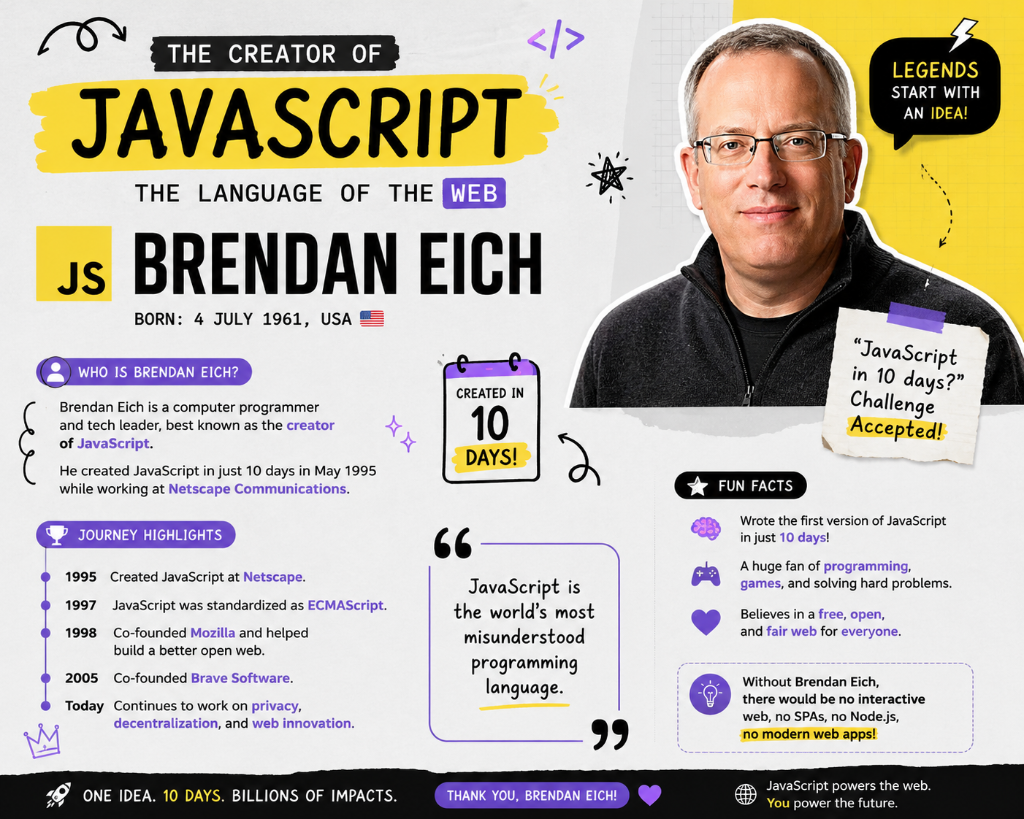
In 1995, at a browser company called Netscape, Brendan Eich was asked to add a small scripting language to the web browser — and he built the first version of JavaScript in about ten days. It was meant to be a tiny, simple helper for web pages. Three decades later it is one of the most-used programming languages on Earth, powering websites, phone apps, servers, and more.
The point, not the trivia: JavaScript grew far beyond what anyone planned for it — which is exactly why it has a few quirky corners you'll meet later (some of them, like the with statement, are things modern code deliberately avoids). Knowing the language was built fast and grew organically will help those quirks feel like history, not magic. Now — back to writing code.
How JS gets onto a page
The browser only runs JavaScript that you hand it with a <script> tag.
JavaScript doesn't magically appear — you attach it to your HTML with one tag: <script>. There are two ways to do it. You can write the code inline, straight between the tags, or you can keep the code in a separate .js file and point to it with the src attribute. Here is a complete, from-scratch HTML file showing both — build it one line at a time and read the comments.
<!DOCTYPE html><html lang="en"><head> <meta charset="UTF-8"> <title>Hello JS</title></head><body> <h1>Poshtik Campus</h1> <!-- WAY 1 · INLINE: code written right here --> <script> console.log("Hi from inline script"); </script> <!-- WAY 2 · EXTERNAL: point to a separate file --> <script src="script.js"></script> <!-- ← this course's standard --></body></html>Line 10–12 · Inline. The code lives between <script> and </script>, right inside the HTML. Quick for one tiny snippet — but it clutters your HTML and can't be reused on other pages.
Line 14 · External. The src="script.js" tells the browser "go fetch that file and run it." The tag is empty — nothing goes between these tags. This is what we use.
✓ Both run. But from Class 13 on, this course keeps JavaScript in an external script.js — always.
Why external wins — and becomes a hard rule: keeping JavaScript in its own script.js file means ① your HTML stays clean and readable, ② the same code can be linked from every page (index, menu, about) instead of copy-pasted three times, and ③ it mirrors exactly what you already do with style.css — structure in HTML, style in CSS, behaviour in JS, each in its own file. One job, one file.
You'll see it in two places: in the <head>, or — more commonly and more safely — right before </body>, at the very bottom. Putting it last means the browser has already built the whole page before your JavaScript runs, so your code can safely find and change any element. That's why our example puts it on line 14, just above </body>. We'll rely on this placement heavily from Class 16.
See the whole thing work — a fresh, complete page from a blank file
Forget the food site for a moment. Here is an entirely different, brand-new page — a tiny space-mission countdown — written from a completely blank file, top to bottom. It uses the external way (the course standard): the page loads, the browser fetches countdown.js, and that file prints to the console. Build the HTML one line at a time, then read the file it points to and the output it makes. Nothing here depends on any earlier class — it's self-contained on purpose.
<!DOCTYPE html><html lang="en"><head> <meta charset="UTF-8"> <title>Launch Control</title></head><body> <h1>🚀 Mission Control</h1> <p>Open the console to watch the countdown.</p> <!-- external file — the course standard --> <script src="countdown.js"></script></body></html>/* HTML is complete & plain above. Two rules, so it doesn't look raw ↓ */ body { background-color: midnightblue; color: white; } h1 { color: gold; } /* mission-control look */🚀 Mission Control
Open the console to watch the countdown.
↑ PLAIN HTML — WHITE PAGE, BLACK TEXT, NO STYLESHEET YETPlain page first. Then rule one turns it midnight blue with white text; rule two makes the heading gold. Line 11's countdown.js adds nothing visible — its output goes to the Console.
console.log("Countdown started…");console.log(3);console.log(2);console.log(1);console.log("Lift-off! 🚀");Countdown started…
3
2
1
Lift-off! 🚀
console.log lines → five lines of output, in order, top to bottom. JavaScript runs your file one line at a time, exactly as written.What this proves: a real page is just a plain HTML file plus a separate .js file it points to with <script src="…">. You built both from blank, on a topic that has nothing to do with our project — because the skill is the same everywhere. In Part 7 you'll repeat this same wiring in your own throwaway fswd-practice\Class-13 sandbox, so it's muscle memory before you ever use it on the real project in a lab.
Do this on your own machine — right now
Make a throwaway fswd-practice\Class-13 folder and give it a brand-new script.js.
This is the one hands-on move of the class, and it's a moment worth marking: the file you create now grows for the entire rest of Unit 2. Every class from here — variables, objects, the DOM, arrays, events — adds to this exact file. You are not starting a new project; you are giving the site you already built its first heartbeat.
fswd-practice\ sandbox in VS Code and make a fresh folder inside it called Class-13. This is scratch paper — nothing here is the real project, nothing here is ever committed. (The real poshtik-campus\ project is only ever touched in labs.)fswd-practice\Class-13\ create two tiny files from scratch: hello.html and, right beside it, script.js — all lowercase, the .js extension matters. Leave script.js empty for one more minute.hello.html, add this one line just before </body>:<script src="script.js"></script>
fswd-practice\Class-13\ — your throwaway sandbox folder for today. Open it in VS Code.hello.html and script.js, both created from scratch, side by side.hello.html to open it in your browser, then press F12 → Console tab to see the output.fswd-practice\ is scratch paper: no repo, no git add, no git commit. Only the continuous poshtik-campus\ project — built in the labs — ever carries commits.Sanity check before you leave this part: an empty script.js is completely fine — it just does nothing yet. If the page still loads without any error, your wiring is correct. In the very next part we put the first line into that file and finally see it speak.
The "Hello, World" of every programmer
console.log() — the one line that proves your JavaScript is alive.
Every programmer's first act in a new language is to make the computer say something back. In JavaScript that's console.log() — a built-in command that prints whatever you put in the brackets to a hidden panel called the Console, tucked inside the browser's DevTools. It doesn't change the visible page; it's your private window into what your code is doing. Put this one line in the script.js you just made:
But a .js file cannot run on its own. JavaScript is a passenger: something has to carry it, and that something is always an HTML page. So we build the page first — plain HTML, then CSS, then the script — exactly the order you will use for the rest of the course. Watch all three files grow in one panel.
<!-- FILE 1 of 3 · console-demo.html — the page that will CARRY the script --><!DOCTYPE html><html lang="en"><head> <meta charset="UTF-8"> <title>Console demo</title></head><body> <h1>Poshtik Campus</h1> <p>Press F12 → Console to see what script.js printed.</p></body></html>/* HTML is complete & PLAIN above. FILE 2 of 3 · the <style> — one rule per press ↓ */ <style> /* typed back up in the <head> */ body { font-family: Georgia, serif; padding: 20px; } h1 { color: seagreen; } </style><!-- CSS done. FILE 3 of 3 · now hire the passenger — last line before </body> --> <script src="script.js"></script> <!-- the carrier picks up the JS -->// ————— script.js · your first-ever JavaScript —————console.log("Hello, Poshtik Campus!");Poshtik Campus
Press F12 → Console to see what script.js printed.
PLAIN HTML — NO <style> AND NO SCRIPT YETReading the one line: console — the built-in object representing the DevTools console. .log() — its "print this" command. "Hello, Poshtik Campus!" — the text (a string, in quotes) you want printed. The semicolon ends the statement. Read it left to right: "console, please log this text."
And here is exactly what that one line prints
Save the file, refresh the page, press F12 and click the Console tab. This is the precise picture you will see — one tidy line of white text. No pop-up, no change to the visible page: console.log speaks only to this hidden panel. That's it. You have run real JavaScript.
Run it yourself — this console is real
You don't have to imagine the output — you just saw it above. But better still: the panel below is a genuine JavaScript console running in this page. Type a console.log(...) of your own and press Run, or press one of the ready-made buttons. Whatever you type is really executed by your browser, and the output appears live.
On your own machine you reach this exact panel by pressing F12 (or right-click the page → Inspect) and clicking the Console tab. Your console.log from script.js appears there the instant the page loads. Get comfortable here — the Console is where you'll check your work for the rest of the course.
One more, on a totally different topic — console.log prints anything, not just greetings
This snippet has nothing to do with the food site — and that's the point. Every code example in a lecture is throwaway: a tiny world we invent just to see one idea clearly, then discard. Here the little world is a video-game scoreboard. Notice three brand-new things: you can print a number (no quotes — numbers aren't text), the console can do real arithmetic for you, and you can glue text and a value together with a +. Build it one line at a time.
console.log("=== BOSS FIGHT RESULTS ===");console.log(2500); // a plain number — NO quotesconsole.log(2500 + 800); // the console does the mathsconsole.log("Total XP: " + 3300); // text + value, glued=== BOSS FIGHT RESULTS ===
2500
3300
Total XP: 3300
The one rule hiding in here: quotes = text, no quotes = a value (a number, or something the browser will work out). "2500" is the four characters two-five-zero-zero; 2500 is the actual number you can add. That single distinction is the seed of the data types you'll meet in Class 14 — you just saw your first two: string and number.
Prove it yourself — run the game lines here
Same live, real console — different playground. Press a button, or type your own console.log with numbers and +. Try console.log(10 * 5) and watch the browser multiply for you.
Break it on purpose: run console.log(Hello) — no quotes — and read the real error.
Errors are not failures; they are the language talking to you. The fastest way to stop fearing them is to cause one deliberately and learn to read what it says. Your task: in the live console below, run console.log(Hello) — deliberately missing the quotation marks — and then answer, in your own words, what the browser complained about and why.
console.log(Hello) (no quotes around Hello) and press Run. Then type the correct console.log("Hello") and compare.Cause the error yourself first — reading someone else's error explanation teaches half as much as reading your own.
Here is the exact console output, annotated. The broken line throws a red error; the fixed line prints happily.
at script.js:1
| WHAT YOU WROTE | WHAT THE BROWSER THOUGHT | RESULT |
|---|---|---|
| console.log(Hello) | "Hello with no quotes must be the name of something — a variable. Let me look it up… there's nothing called Hello." | ❌ ReferenceError: Hello is not defined |
| console.log("Hello") | "Quotes mean this is plain text (a string). Print it as-is." | ✓ prints Hello |
The lesson that sticks: quotes tell JavaScript "this is literal text." Without quotes, JavaScript assumes you're naming a variable — a stored value with that name — and if no such variable exists, it stops and says ReferenceError: … is not defined. You'll meet this exact error dozens of times; now you can read it in one glance. And "variable" is exactly what Class 14 is about.
Notes to yourself the browser ignores
Two ways to leave a comment — for a future you who has forgotten everything.
A comment is a note you write inside your code that the browser completely ignores when it runs. It's for humans — to explain why a line exists, or to temporarily switch off a line without deleting it. JavaScript has two flavours, and you already know one shape from HTML and CSS. Build the file below one line at a time.
<!-- FILE 1 of 3 · comments.html — plain HTML, and its OWN comment shape --><!DOCTYPE html><html lang="en"><head><meta charset="UTF-8"><title>Comments</title></head><body> <!-- an HTML comment — invisible on the page --> <h1>Comments in three languages</h1> <p>The page shows only this. Open the Console for the rest.</p></body></html>/* HTML complete & PLAIN. FILE 2 of 3 · the <style> — note the /* */ shape ↓ */ <style> /* a CSS comment — the SAME shape JavaScript uses */ body { font-family: Georgia, serif; padding: 20px; } h1 { color: seagreen; font-size: 22px; } </style> <script src="script.js"></script>// ————— FILE 3 of 3 · script.js · JavaScript has BOTH shapes —————// This is a SINGLE-LINE comment — everything after // is ignoredconsole.log("This line runs"); // a comment can also sit at the end of a line/* This is a MULTI-LINE comment. It can stretch across as many lines as you like — until the closer. */// console.log("This line is switched OFF"); ← commented out, won't runconsole.log("Goodbye!");Comments in three languages
The page shows only this. Open the Console for the rest.
PLAIN HTML — THE <!-- COMMENT --> ON LINE 5 IS NOWHERE TO BE SEEN| SYNTAX | NAME | USE IT FOR |
|---|---|---|
| // text | single-line comment | a short note, or the end of a line — everything after // on that line is ignored |
| /* text */ | multi-line comment | a longer explanation spanning several lines, or switching off a whole block |
You already know half of this: the /* */ shape is exactly the CSS comment from Unit 1 — it works identically in JavaScript. The // shape is the new one, and it's the one you'll use most. Good comments explain why, not what — the code already shows what; your comment adds the reason.
The most common beginner mix-up, settled once
JavaScript is not Java. The names are a marketing accident.
Because you're also studying Java this semester, this confusion is guaranteed — so let's kill it now. JavaScript and Java are two completely different, unrelated languages. They share four letters and nothing else that matters. The similar name was a 1995 marketing decision (Java was the hottest language of the day, so Netscape borrowed the buzz). Here's the honest side-by-side.
| JavaScript | Java | |
|---|---|---|
| where it runs | inside the web browser (and later, servers) | on the Java Virtual Machine, apps & Android |
| this course uses it for | making web pages interactive (Unit 2) | object-oriented programming (your Java paper) |
| born | 1995, Brendan Eich, Netscape | 1995, James Gosling, Sun Microsystems |
| relationship | NONE — "Java is to JavaScript as ham is to hamster" (the classic joke) | |
The one line to remember: "Java and JavaScript are as different as a car and a carpet — same start, different thing." Whenever you read or write about this course's language, its full, correct name is JavaScript. In an exam, never shorten it to "Java" — they are different subjects, and the marker will notice.
Take it home
Your first-script kit — the whole class on one card.
| THING | WHAT IT IS | THE ONE THING TO REMEMBER | TODAY'S EXAMPLE |
|---|---|---|---|
| JavaScript | The language that runs in the browser | runs AFTER HTML & CSS; can change the page live — the only layer that moves | the button that brought the page alive in Part 3 |
| ES6 | ECMAScript edition 6 (2015) | = "modern JavaScript"; ECMAScript is the formal name of JS | let / const arrive next class |
| <script> tag | How JS attaches to a page | use EXTERNAL — <script src="script.js"></script>, just before </body> | linked from all three poshtik pages |
| console.log() | Prints a value to the DevTools Console | press F12 → Console tab to see it; text needs quotes | console.log("Hello, Poshtik Campus!"); |
| ReferenceError | "you named something that doesn't exist" | usually means missing quotes, or a typo'd variable name | console.log(Hello) → not defined |
| // and /* */ | Comments the browser ignores | // = one line; /* */ = many lines | the two-flavour file in Part 10 |
script.js wired with <script src…> — is exactly what you'll apply to the real poshtik-campus\ project in the labs, where the continuous build actually gets committed.Class 13 · closed — Unit 2 is properly under way
Your page stopped being a poster. It ran your first line of code today.
You saw why a static site can't say "no" to an empty order, learned that JavaScript is the browser's behaviour layer that changes the page live, met ES6 as just a version name, wired an external script.js into a page you built from scratch, printed your first console.log, read a real ReferenceError, learned both comment styles, and settled the Java-vs-JavaScript mix-up forever — all in a throwaway sandbox, nothing committed. Class 14 takes the same skills into variables and data types — where let, const, and the five primitive types finally give your code a memory.
- Two-minute drill: in a fresh
fswd-practice\Class-13file, write the external<script>line and oneconsole.logthat prints your own name. - Error rehearsal: run
console.log(YourName)without quotes, read the ReferenceError, then fix it — say out loud why quotes matter. - Set up for next time: nothing to hand in — the sandbox is throwaway. Just be comfortable creating an HTML file, linking a
script.js, and opening the Console with F12. That's all Class 14 assumes.